MISLAND System Admin Panel#
The following document is a system administrators manual that gives information on how to configure and manage the system. The backend of the system is built on django and therefore features the general characteristics of Django-admin settings. From the admin panel, the system administrators can manage dataset, users, and system resources thus ensuring that the computing resources are well utilized while still maintaining a high level of data security and integrity. The components of the system are described in details in the sections that follow.
System Setting#
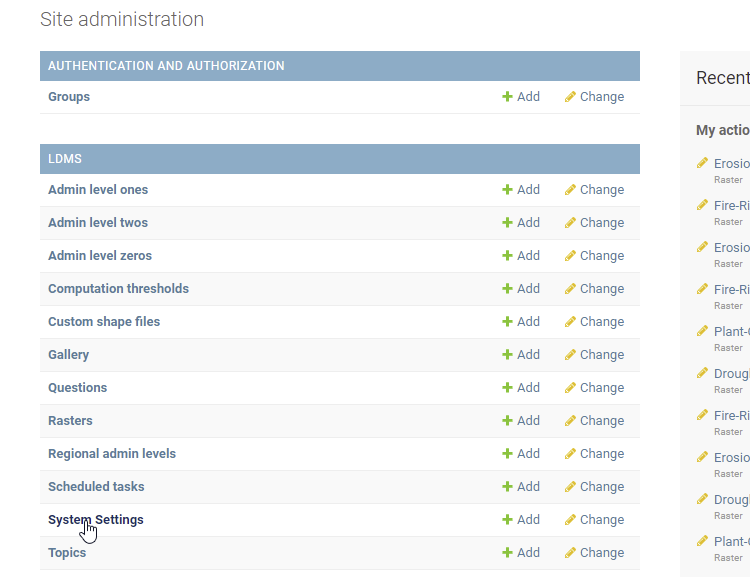
System settings can be accessed by going to System Settings and then click the item under Email Host. From here you can set several variables that are key to system resources management. One of the variables you can configure from here is the maximum size of a polygon that can be processed by the system on the fly.
Vegetation Qulity Index model outputs#
Guest user polygon size limit#
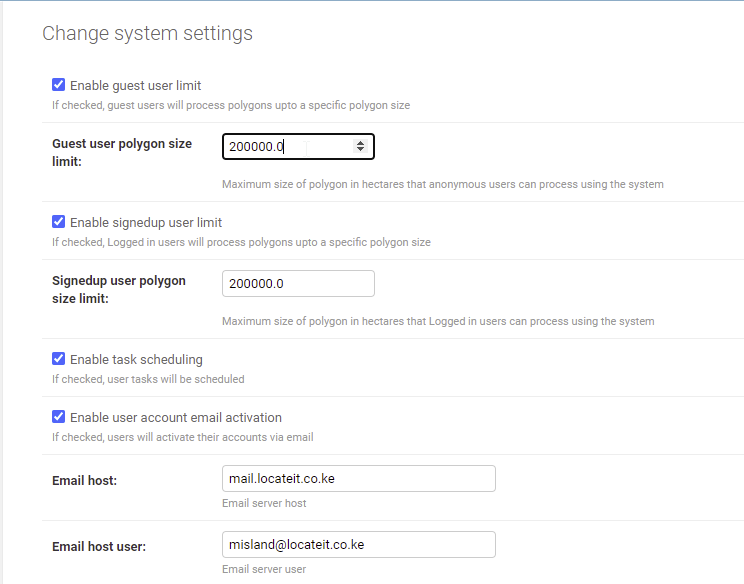
Use this function to limit the size of the area for which unregistered users (Guest) can process data on the fly. The admin of the system can choose to turn off this option and therefore allow guest users to process large amounts of datasets on the fly.
Guest Polygon Size limit#
Signed up user polygon size limit#
This limits the maximum size of an area a registered user can compute on the fly. Registered users have the option of scheduling processing tasks that use datasets that cover areas larger than the set polygon size limit. Tasks scheduling can be enabled/disabled by checking/unchecking the Enable tasks scheduling option.
Guest Polygon Size limit#
Enable user account activation#
When this option is turned on, a verification email is sent to every user who registers with the system. This ensures that users only register with emails that they have access to, and are therefore able to get notifications related to their activities within the system.
Email, URLs and host email host port setup#
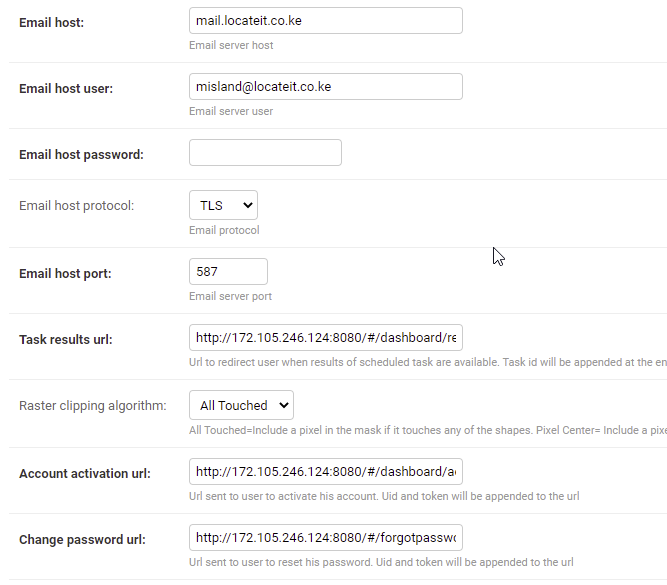
These options are crucial for connecting the backend to the frontend and are most likely to be setup only once during the initial system setup. Here you can set up the different emails required to ensure smooth working of the system. In addition to setting up the email urls, you can configure the raster clipping algorithm that is used when performing computation under Raster clipping algorithm option.
Email, URLs and host email host port setup#
Enable Cache Limit#
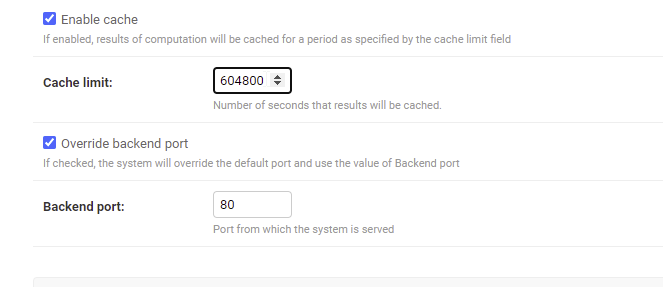
The system features a cache that enables the system to store pre-computed outputs of the system. The Cache limit is set in seconds, which indicates how long the results should be stored in the system once they are computed.
Enable Cashe Limit options#
Backend port#
The system is designed to automatically generate a backend port, but it can be set manually by checking the override backend port option. When all configuration for the system settings are done, click the Save button to apply all the changes made to system settings.
Enable Cashe Limit options#
Scheduled Tasks#
As mentioned before, the system enables users to schedule tasks that involve computation of relatively large dataset. To view all the scheduled tasks, select the Scheduled Tasks option in the admin panel. This option lists all scheduled tasks with information related to the tasks, including who scheduled them, when they were scheduled and the current status of those tasks.
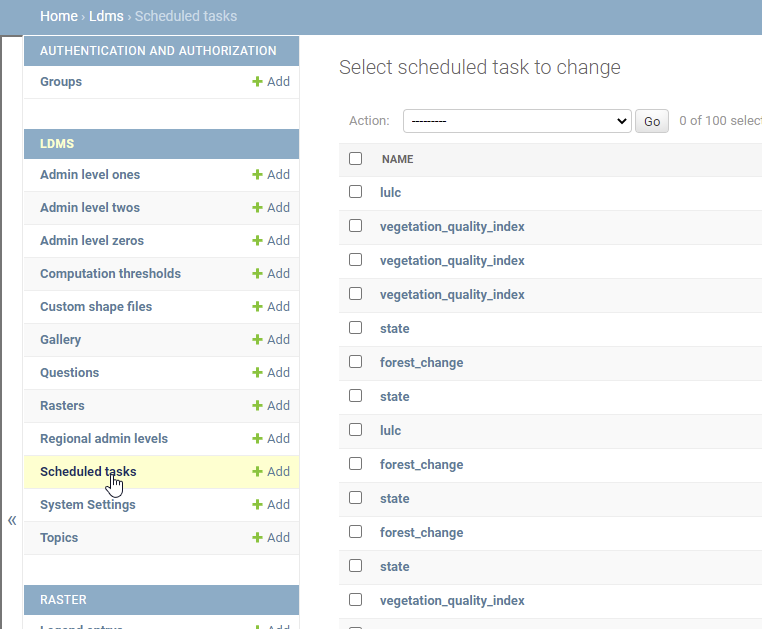
Schedule task#
Uploading and Manipulating data in the system#
The Raster option enables system admin to upload, filter, delete and edit the raster datasets.
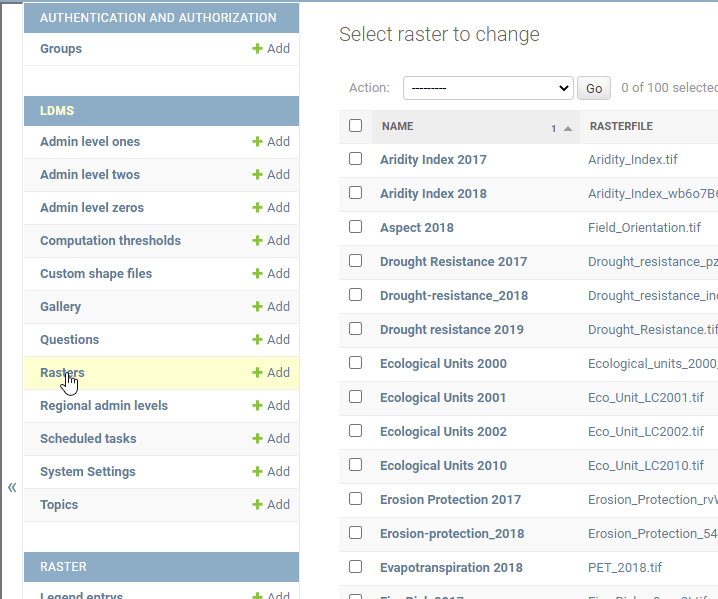
Uploading rasters#
Uploading data set#
To upload the dataset, click on the Add Raster button. This will open a data upload panel that will guide you through the data upload process.
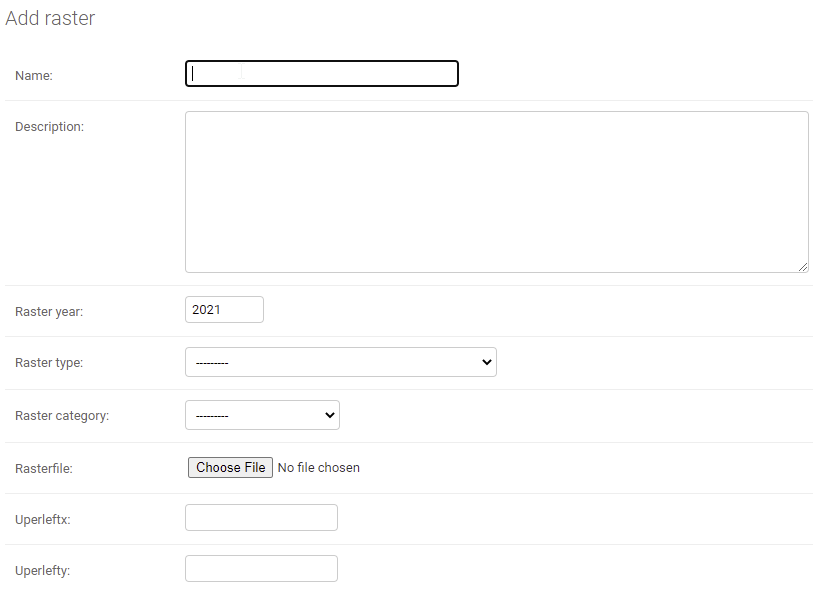
Add raster form#
Uploading Medalus data#
Different types of datasets have different fields based on their roles in the system. For example, all medalus datasets must be associated with Aspect so that the system associates them with the computation modules for mebalus, see figure 7.
Uploading Landsat data#
Landsat rasters are relatively heavier in size per unit area, and should therefore be uploaded at country level. For this reason, in addition to providing the basic information such as name and year, they must be associated with their corresponding administrative level, e.g. admin level 0, see figure 8. Some of the datasets that are derived from landsat satellite images include MSAVI, SAVI and NDVI. Uploading the other datasets Uploading the other dataset is very similar to uploading Medalus dataset. LULC, Modis derived Vegetation indices, Carbon stock (SOC) and ecological units dataset must be uploaded at the regional scale, i.e. one file for the whole of North African States.
Adding/editing Question#
The Frontend of Misland provide a web page through which Frequently Asked Questions (FAQ) are displayed. The Question option of the admin panel provides a user friendly tool through which FAQs can be managed. From here, new FAQ can be added, outdated ones deleted or deactivated, and existing ones edited.
Questions Section#
Note that you can have several FAQs in the system but only display a few of them by activating and deactivating them.
Figure 11.
Modifying Gallery Items#
The Gallery option on the admin panel is used to Upload new images on the homepage of Misland. The system is designed in such a way that you do not need to delete old images, all you need to activate (check/uncheck is published) the image you want displayed, and deactivate outdated images.
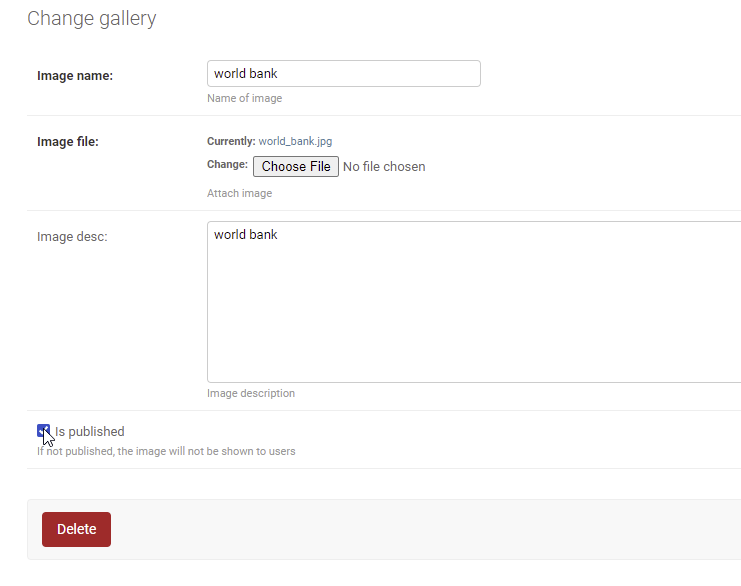
Publishing Gallery Intems#
Managing Custom shapefile#
This option enables the system administrator to view and manage all the custom shapefiles (Shapefiles uploaded by individual users).
Computation Threshold#
Computation thresholds are used to limit the amount of area that can be computed in real time within the system. This is an important feature of the system as it enables the system administrator to manage the computing resources of the system. There are two main thresholds that are set here; The Modis threshold, which applies to all dataset with spatial resolution greater than 30m, and Landsat threshold, which apply to dataset with spatial resolution of 30m.
Managing Users#
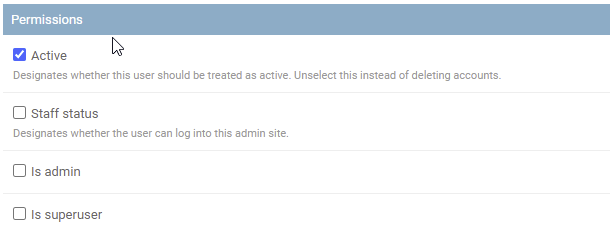
The admin panel provides tools for managing registered system users. Using this functionality, the system admin can create new user, activate/deactivate existing user and assign different privileges to different them.
Gallery#
To modify the access rights of a particular system user, just click that user’s name on the system panel and implement the desired changes. After the modification, just click the save button and the changes will take effect.
User Feedback#
User feedback is sent to a github account for which the system admin can login and take appropriate action. User feedback template is able to submit both text and images sent by the users of the system.
Google analytics#
The system uses google analytics to track user visits to this online service. Some of the information google analytics is able to provide include the number of visitors who are currently active on the system, the number of visits in a particular period, the countries from which online traffic is coming from among other information. Figure 16 shows sample information provided by google analytics. Google Analytics Link